1 Log in to Optimizely SaaS:
Login into the Optimizely CMS.
2 Import Data in Optimizely:
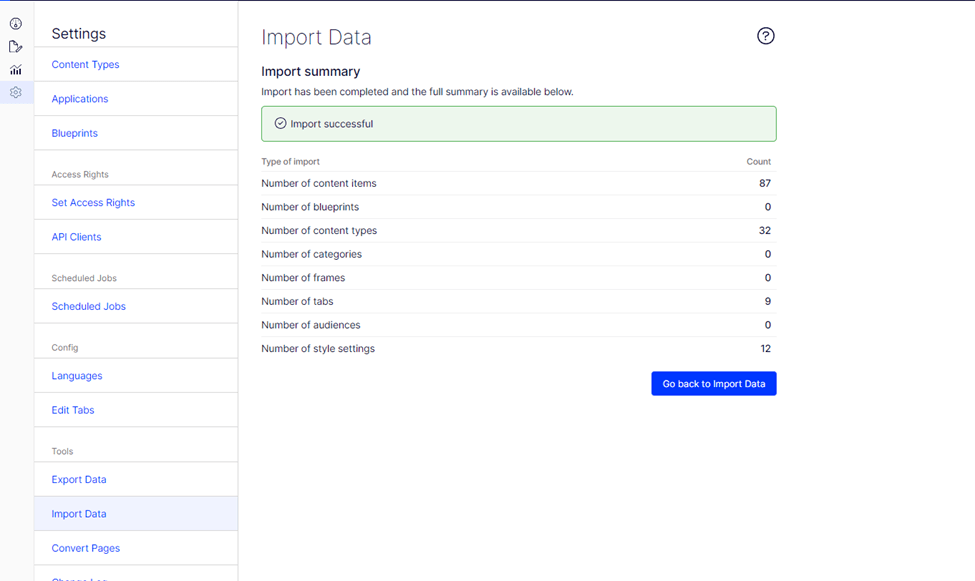
- Download the sample “Mosey Bank” data and import it.
- Navigate to Settings > Import Data > Choose File.
- Choose Root path under content tree.
- Click Begin Import.
3 Deploy to Vercel: check video
- Go to the GitHub repository – https://github.com/episerver/cms-visual-builder-vercel-beta
- Import this repo to Vercel.
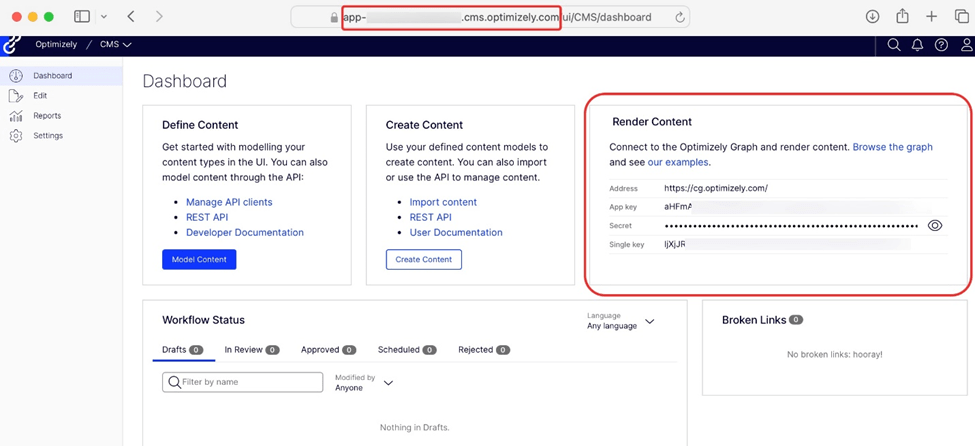
Setup below environment variables in vercel: - OPTIMIZELY_CMS_URL: This is the link to access the Optimizely CMS during the build process. For example: https://example.cms.optimizely.com/.
- OPTIMIZELY_GRAPH_SECRET: You can find the Content Graph Secret in the CMS Dashboard under the Render Content section.
- OPTIMIZELY_GRAPH_APP_KEY: This key is also available in the CMS Dashboard, located within the Render Content section.
- OPTIMIZELY_GRAPH_SINGLE_KEY: Similar to the App Key, this can be found in the Render Content section of the CMS Dashboard.
- SITE_DOMAIN: This will be the Vercel app URL, which you’ll need to add after deployment to set up the visual editor.
Now, deploy the app to Vercel.

- Go to Settings > API Clients.
- Create a new API client and generate the key/secret.
- Note down the generated key and secret for use in .env
4 Setup Visual editor for Optimizely:
- Go to Settings > Applications.
- Create Website Application.
- Edit the Website and setup Host name:
- Copy the Vercel URL and add in hostname.
- Save and reload editor
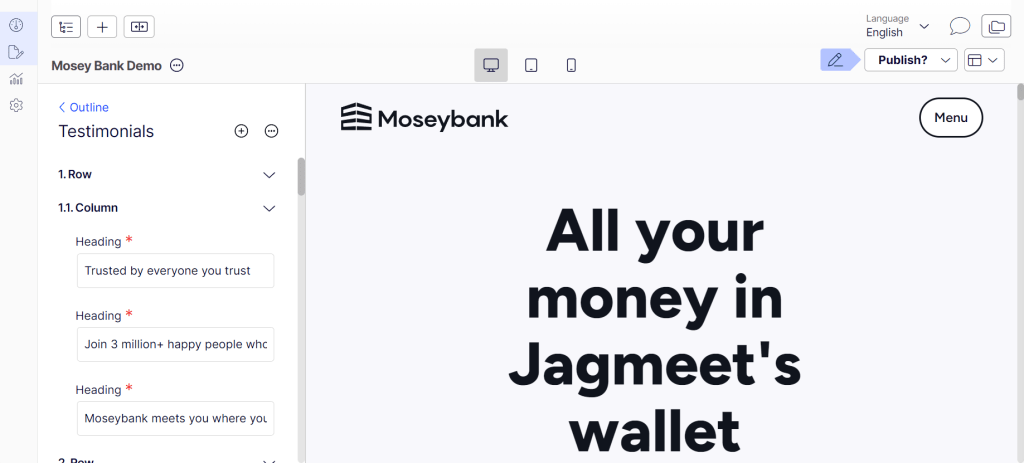
Go to Edit and you will be able to see the site. Edit and test.
Setup Local:
- Clone repo on your local
- Add values of environment variables in .env file
- Execute yarn install
- Now, execute yarn next dev –experimental-https -p 3002
- You will be able to see your local site at https://localhost:3002
- Follow the (4) for setting up application for local
Good Luck!
 Tech with Jagmeet
Leave a comment