- To create a new CMS or Optimizely Commerce Connect application, first install the templates. You can also choose to install the Command-Line Interface (CLI) tool for added functionality:
dotnet new -i EPiServer.Templates
When using Visual Studio 2019, you need to choose a prior version to install the templates. The most recent templates are designed for ASP.NET, which is not compatible with Visual Studio 2019.
dotnet new -i Episerver.Templates::1.1.0
Command-Line Interface tool
The Optimizely Command-line Interface (CLI) tool is optional but makes creating or updating databases easy.
dotnet tool install EPiServer.Net.Cli --global --add-source https://nuget.optimizely.com/feed/packages.svc
2. Install CMS
Create an empty site:
dotnet new epi-cms-empty
Create a sample site with Alloy templates
dotnet new epi-alloy-mvc
The following command includes extra options to specify the project name, designate the output folder, and activate Docker (incorporating the files necessary for operation under Docker):
dotnet new epi-alloy-mvc --name alloy-docker --output ./alloy-docker --enable-docker
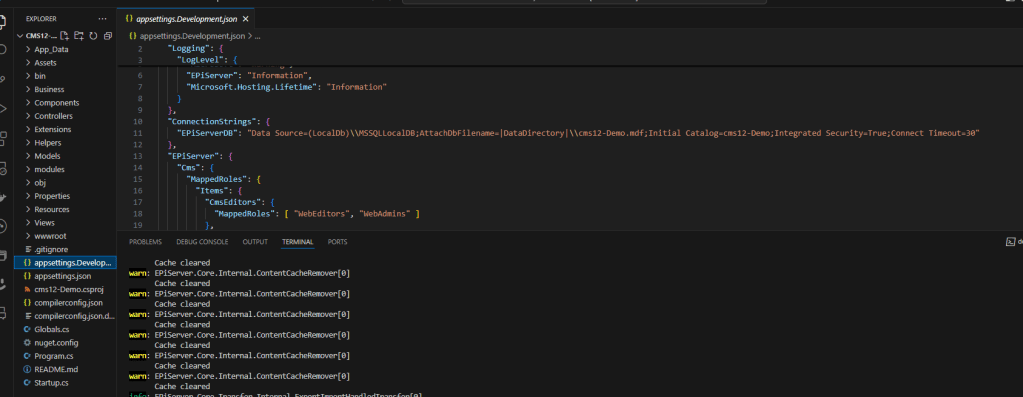
If you want to create your own database and connect to site. Make the changes in appsettings.json file.
Hope this helps!
 Tech with Jagmeet
Leave a comment