The landscape of web development is rapidly evolving, and Generative AI is taking center stage in accelerating and simplifying the process. Building a website with Optimizely, a powerful digital experience platform, can now be enhanced with AI tools that streamline workflows, enhance creativity, and ensure a polished final product.
In this blog, we’ll walk through how Generative AI tool called Builder.io that can help you design, develop, and demo a professional Optimizely website.
What is Builder.io?
Builder.io is a visual CMS and headless frontend builder that allows you to:
- Design and edit websites visually.
- Integrate seamlessly with existing tech stacks (like React, Next.js, or Angular).
- Create reusable, customizable components with minimal coding.
Its unique Design-to-Code approach ensures designs stay true to the live website experience by allowing you to build and edit directly in the context of your existing site.
Why Use Builder.io for Design-to-Code Workflows?

- Real-Time Editing:
- Instead of working in static design files, Builder.io lets you edit live website elements visually.
- The WYSIWYG editor shows changes as they will appear on the site.
- Reusable Components:
- Developers can integrate existing components into Builder.io.
- Designers can customize these components without disrupting functionality.
- Collaboration-First Design:
- Syncs with development workflows.
- Allows non-technical teams to contribute to design updates.
Part 1: Convert designs to code with Builder.io
- Install Builder.io plugin on Figma
- Go to your team in Figma, right click and select the options as given below:
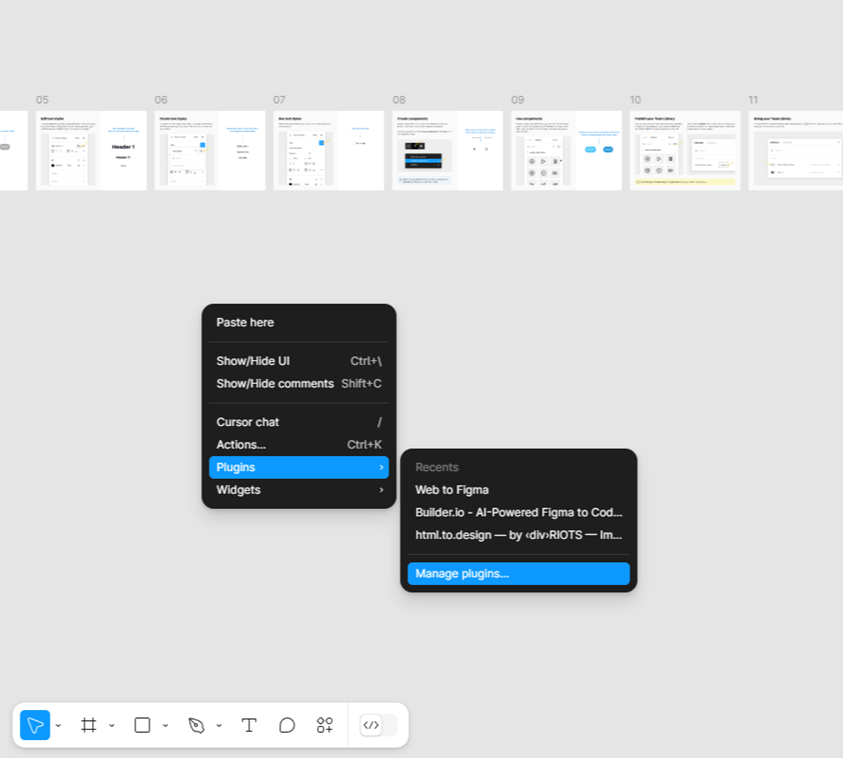
3. In Manage Plugins, you can search for plugin and install
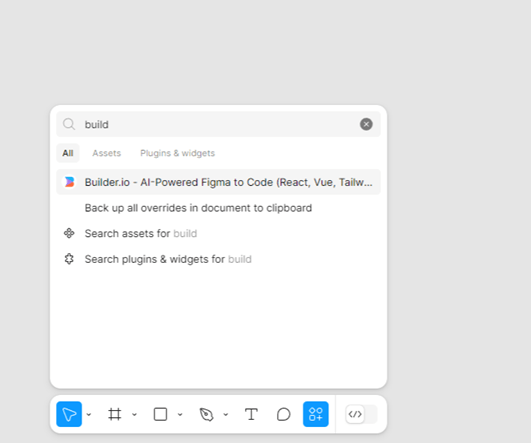
4. Once the builder.io plugin is installed on Figma, you can start moving your designs to code
5. In your Figma file, select the frames or layers you want to convert into code. This can be an entire design or specific components.
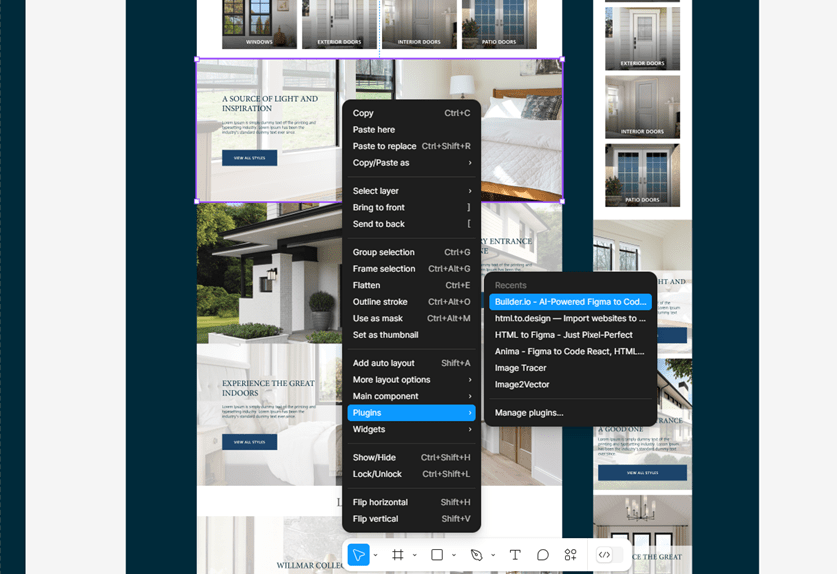
6. Once your design is ready, use the Builder.io plugin to generate the code. Click the “Export Code” button in the plugin. This will create a Builder fiddle with your content.
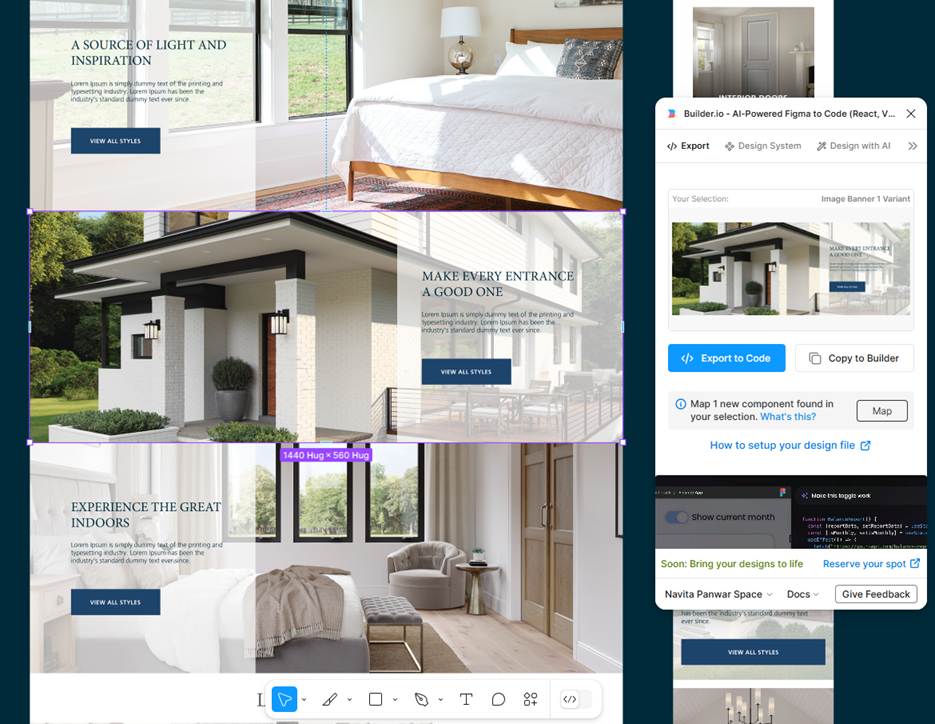
This will move the selected design and corresponding code to Builder.IO’s visual code.
7. Using Visual Copilot makes it easy to convert your Figma designs into functional code, streamlining your design-to-code workflow.
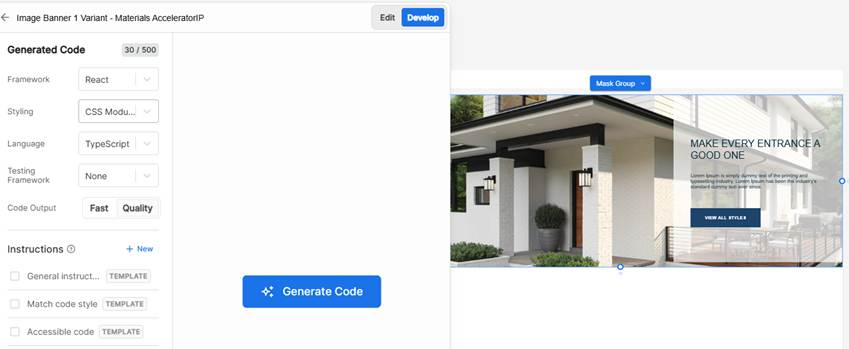
Click on Generate code to get the code for the FeaturedTile component, and we can select different Frameworks like, HTML, React, Angular Vue, and styling options such as CSS Modules, Tailwind, Styled Components etc.
8. Review the generated code. You can customize it by choosing different UI libraries, styling solutions, and quality modes. If needed, you can enter additional prompts to modify the code further
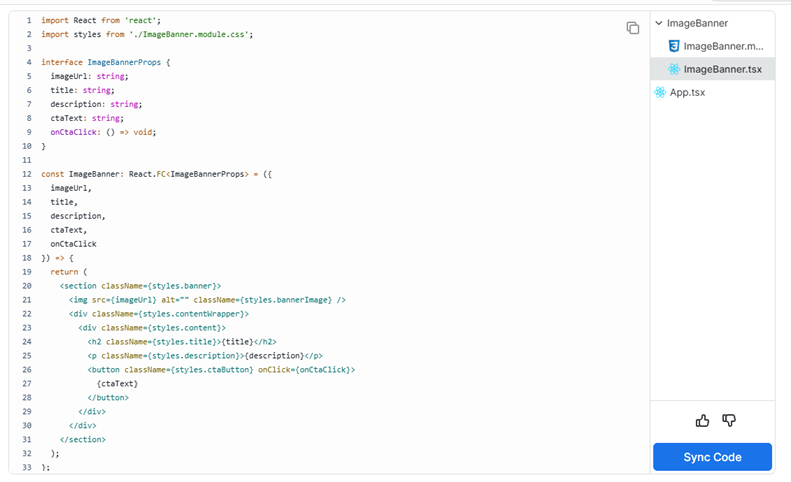
Part 2: Use it in Optimizely component
- Create the element content type with fields as per the requirement in the component.
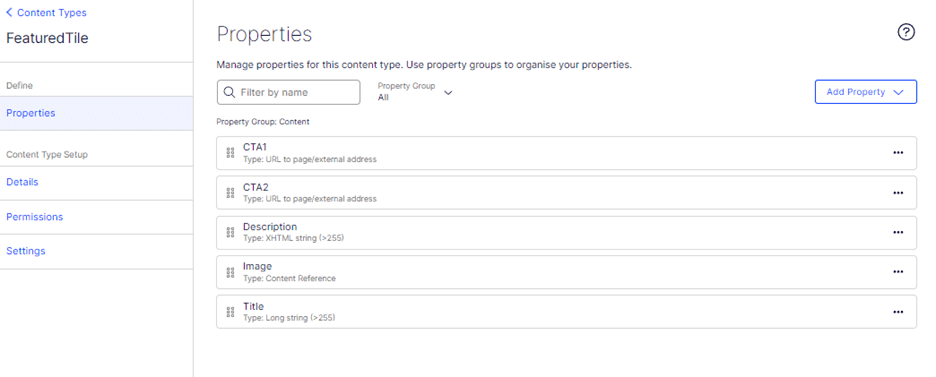
2. Add the code generated by builder.io to element folder as given in the below folder. Code that we got in .tsx file will go in the index.tsx.

3. Next, you can add on to your page and use by editing the data.
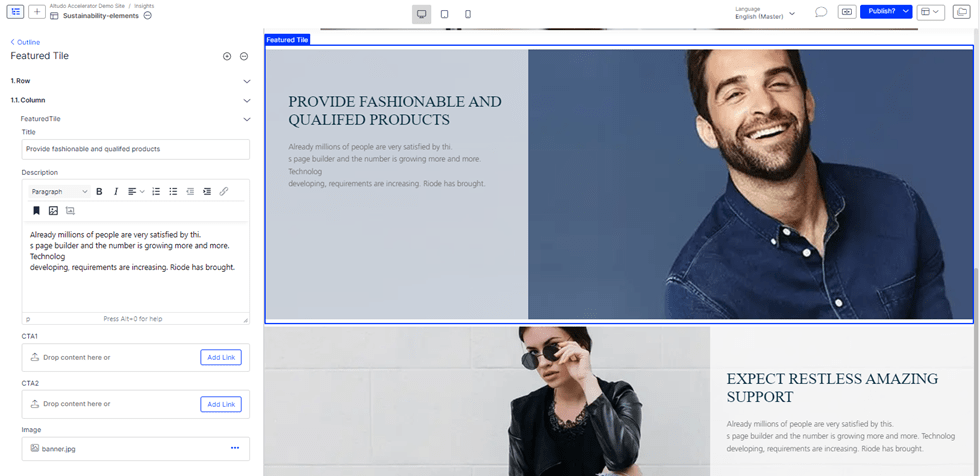
Generative AI tool Builder.io simplifies the transition from design to demo by enabling teams to edit and optimize websites in real time. Whether you’re building a site from scratch or refining an existing one, its collaborative tools bring together designers, developers, and marketers on a unified platform.
If you’re tired of the inefficiencies of traditional web design workflows, Builder.io offers a revolutionary approach to creating websites that are as functional as they are visually stunning. Explore its features today and elevate your design-to-development process!
If you are interested in learning Optimizely SaaS CMS, please visit the following playlist on YouTube. If you are interested in videos like this, please subscribe to my channel.
 Tech with Jagmeet
Leave a comment