Fixing Visual Editor Issues in Optimizely SaaS CMS
A common problem for developers and content editors using Optimizely’s SaaS CMS is the Visual Editor and live preview suddenly stopping and displaying 404 errors. This can happen for a few reasons, and the solution that has consistently worked for me across multiple instances and projects often involves two key steps: synchronizing the Optimizely Graph and enabling live preview settings.
Why You’re Seeing 404 Errors 🤷
The Optimizely SaaS CMS relies on Optimizely Graph to fetch and manage content. Think of the graph as a powerful, searchable index of all your site’s content. The Visual Editor and Live Preview features are essentially looking up your site’s content and its associated properties through this graph.
When you see a 404 error, it’s often because there’s a disconnect. The Visual Editor is trying to access a page or content item that isn’t properly synced or indexed in the graph. This can happen if a page is newly created, modified, or after a new deployment, or if a sync job failed. The 404 error means the graph can’t find the content at the requested path.
Step 1: Sync the Full Optimizely Graph 🔄
To fix the 404 error, you need to ensure all your site’s content is correctly indexed. The quickest way to do this is to trigger a full sync of the Optimizely Graph.
- Navigate to the Admin section of your Optimizely CMS instance.
- Look for the Optimizely Graph or Content Graph administration panel.
- Find and run the “Full Sync” or “Reindex All Content” job.
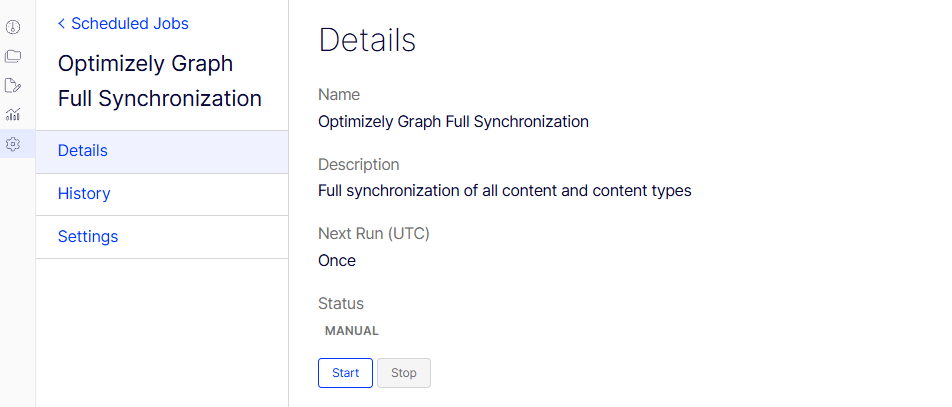
This process will re-crawl and re-index all content, pushing any new or changed pages to the graph. Once the sync is complete, the Visual Editor should be able to locate and load the pages, resolving the 404 errors.
Step 2: Enable Live Preview in Your Application Settings ✅
Step 2: Enable Live Preview in Your Application Settings ✅
If the Visual Editor or live preview still isn’t working after a sync, the issue might be a setting in your application configuration. This functionality was a recent introduction, so if your Visual Editor was working perfectly and then suddenly stopped, this new setting is a likely culprit. The live preview functionality needs to be explicitly enabled for your application within the Optimizely settings.
- From the Optimizely CMS dashboard, go to Settings.
- Select Applications.
- Click on your specific application to open its settings.
- Navigate to the Live Preview tab.
- Check both boxes: “Use Preview Tokens” and “Enabled” under “Preview URL format”.
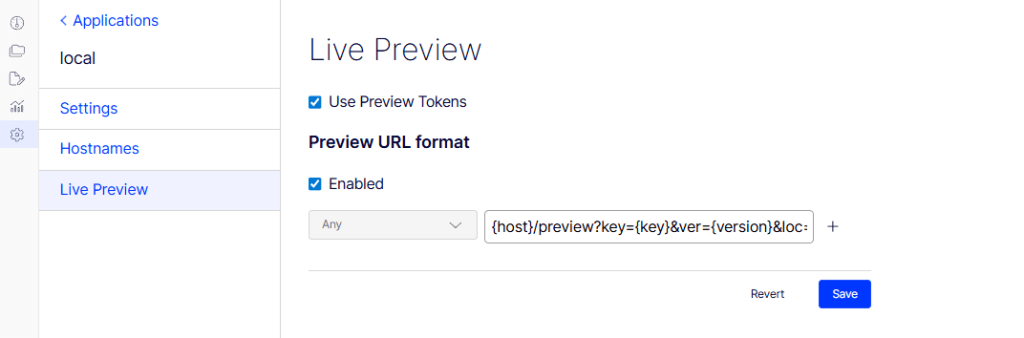
Enabling these options ensures that Optimizely can correctly generate the preview URLs and pass the necessary tokens for the Visual Editor to access draft content and private resources. Without these settings, the editor can’t load the content even if it’s in the graph.
By following these two steps, you can quickly diagnose and fix common Visual Editor and live preview issues in Optimizely SaaS CMS, restoring your ability to edit and view content seamlessly.
 Tech with Jagmeet
Leave a comment